When Your Tablet Never Leaves the Charger
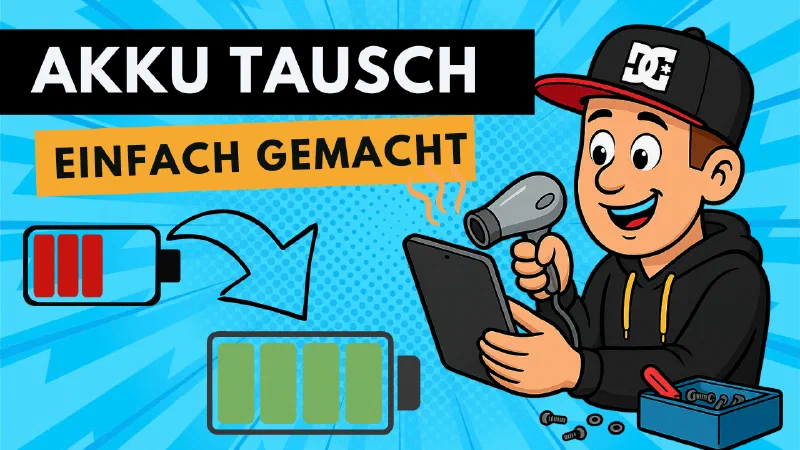
Sound familiar? Your tablet used to be great, but now the battery barely lasts a few hours. Maybe you use it for your Smart Home Dashboard in Home Assistant or for other purposes – but being permanently tethered to a cable is simply annoying.
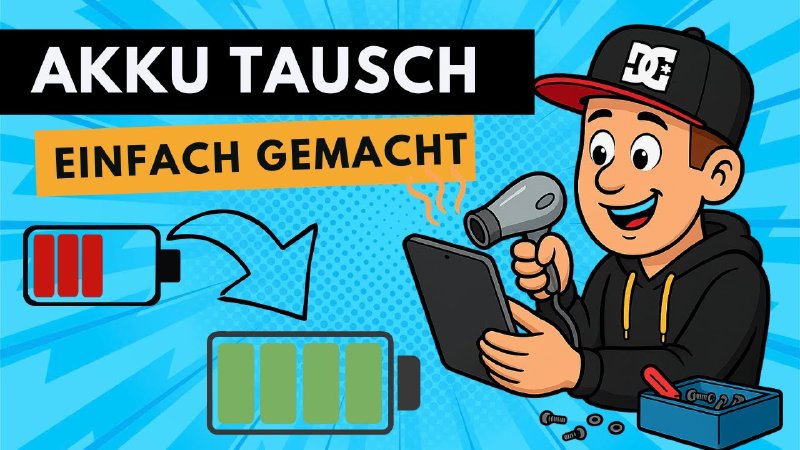
Most people think: “Time for a new device.” But wait! These devices are far too good to throw away. In this article I’ll show you how to breathe new life into your tablet with a new battery – and without any special tools!
Why Repair It Yourself?
Sustainability and Resource Conservation
Every repaired device is a win for the environment. Manufacturing a new tablet consumes enormous resources – raw materials, energy, water. A new battery for €20–30 and 20 minutes of your time can extend the device’s life by years.
Save Money
A new tablet can easily cost several hundred euros. A replacement battery? About €20–30. The math is simple!
It’s Fun!
Honestly: there’s a really great feeling when the device works again after the repair. In the video you can watch every step live alongside me!
My Example: Samsung Galaxy Tab S3
For my Smart Home Dashboard I use a Samsung Galaxy Tab S3. It’s a bit older, but still perfect for Home Assistant. The battery, however, was completely done – the tablet only lasted a few hours.
Spoiler: After the battery replacement it now runs for a whole week again! 🎉
What You Need
Tools (no special equipment!)
- Hair dryer (yes, really – your regular hair dryer!)
- Suction cup or suction cup clamp (available at any hardware store)
- Plastic spatula or an old credit/loyalty card
- Small screwdriver (Phillips head)
- Optional: Plastic opening tools (available online for a few euros)
Materials
- Replacement battery matching your tablet model
- Optional: Replacement adhesive strips for the housing
Important note on buying the battery:
⚠️ Do NOT buy the cheapest battery you find online!
Make sure to look for:
- ✅ Reputable distributors
- ✅ Good ratings and reviews
- ✅ Brand manufacturers or certified replacements
Why? Low-quality lithium-ion batteries don’t just perform poorly – in the worst case they can catch fire. Safety first! I cover this in detail in the video.
Step-by-Step Guide
Step 1: Warm Up the Housing with the Hair Dryer
The first step is heating the adhesive between the housing and the display. Without this step you won’t be able to get into the device.
My recommendation:
- Lowest airflow setting
- Maximum heat
- About 2 minutes warming the entire housing
- One corner more intensively (that’s where you want to open it first)
Temperature check: If you can just barely touch the tablet without burning yourself, it’s perfect!
In the video you can see exactly how long I hold the hair dryer and how!
Step 2: Open the Housing with a Suction Cup
Now comes the exciting part. Using a suction cup or suction cup clamp you carefully pull the housing apart.
Two options:
Option A: Suction cup clamp (the one I use)
- Place it on the warmed corner
- Carefully tighten until a gap appears
- No force – just warm it up again if needed!
Option B: Two simple suction cups
- One on the front, one on the back
- Carefully pull apart with your hands
- Again: patience matters more than strength
You’ll see in the video: In my case the housing pops open after just a few turns!
Step 3: Fully Open the Housing
Once the first gap appears, grab a plastic spatula or an old credit card.
Important:
- ⚠️ Do NOT use metal tools!
- ✅ Plastic only – that way you won’t scratch anything
- ✅ Don’t go too deep into the device
- ✅ Work your way completely around the device
If it doesn’t slide smoothly somewhere? Just warm up that spot with the hair dryer again. In the video I show you the right technique!
Step 4: Watch Out for Cables!
On my Samsung tablet: The back panel has no cabling – just lift it off.
On other tablets: Carefully check whether ribbon cables connect the back panel to the circuit board! Otherwise you’ll tear something off when opening it.
Step 5: Remove the Battery
Now it gets technical – but don’t worry, it’s easier than it looks!
On my tablet:
- Loosen a few screws securing the battery
- Carefully disconnect the ribbon cable
- Gently lift the contact clips with a small screwdriver
- Pull out the cable
In the video you can see every single step in close-up – I show you exactly where each cable sits!
Step 6: Remove the Old Battery
The battery is usually still secured with some adhesive tape. Carefully lift it and remove it from the housing.
Note: Don’t just throw the old battery in the trash! Batteries belong at the recycling center or at the collection point in an electronics store.
Step 7: Install the New Battery
The new battery goes in exactly the same spot.
Connection order:
- Place the battery in the housing
- Reconnect the ribbon cable
- Press the contacts firmly
- Screw the screws back in
In the video I show you what to pay attention to when connecting the cables!
Step 8: Function Test BEFORE Closing!
Important: Test that everything works BEFORE you close the housing!
What I test:
- ✅ Tablet can be switched on
- ✅ Display works
- ✅ Buttons respond
- ✅ Speakers work
- ✅ Battery charges (plug in the charging cable!)
In the video you’ll see the exciting moment: Does it turn on? 😊
Step 9: Calibrate the Battery
Before closing the housing, it’s a good idea to:
- Charge the battery fully (100%)
- Let the tablet drain completely without charging in between
Why? This way the operating system learns the actual capacity and can display accurate remaining runtime again.
Step 10: Close the Housing
Now comes the final step!
Option A: Use the remaining adhesion (what I do)
- The old adhesive often still holds well enough
- Simply press the back panel on and you’re done
- ⚠️ The device is then no longer waterproof
Option B: New adhesive strip
- Remove the old adhesive
- Apply a new adhesive strip (order it together with the battery!)
- Good sealing again
For my Smart Home Dashboard, Option A is perfectly sufficient!
The Result: Mission Accomplished! 🎉
In just 20 minutes: My Samsung Tab runs for a whole week again, just from a new battery!
The tablet is back to being:
- ✅ Usable permanently as a dashboard
- ✅ Usable without constant recharging
- ✅ Ready for years more of service
Common Problems and Solutions
“The housing won’t open”
Solution: Heat it up again! Better to use the hair dryer for 30 seconds longer than to use force.
“I’m afraid of breaking something”
Solution: In the video you can see every move. Take your time and work calmly. Most damage happens from rushing!
“Which battery is the right one?”
Solution:
- The exact model number is printed on the old battery
- Search for that number at reputable shops
- Read the reviews!
“The cable won’t connect”
Solution: Some connectors are a bit fiddly. In the video I show you how I handled the tricky connector on mine – it took me a while too!
Safety Notes
During the Repair
- ⚠️ Never work while connected to power!
- ⚠️ Do not damage the battery (risk of short circuit/fire!)
- ⚠️ Choose a well-ventilated room
- ⚠️ Keep children and pets away
After the Repair
- ✅ Supervise the first charging cycle
- ✅ The tablet getting warm is normal
- ✅ If you see smoke, disconnect from power immediately!
Why This Fits Perfectly with “Using Tech Smartly”
This channel is called “Smart Home? But Secure!” for a reason – and smart means:
- Conserving resources instead of throwing things away
- Taking action yourself instead of buying everything new
- Understanding and mastering technology
A repaired tablet for a Smart Home Dashboard is the perfect example: Old meets Smart!
Your Repair Project?
Write to me in the comments:
- Have you ever replaced a tablet or smartphone battery yourself?
- What was your experience?
- Do you also use your tablet for Smart Home?
- Which device are you considering repairing?
Make sure to watch the video – there you can see every step live and get all the important tips!
More Repair Guides
- Repair BROKEN Shellys – the 30 CENT repair that actually works! – Repair Smart Home hardware instead of throwing it away: save a Shelly 2.5 with a new capacitor
- Repair Sonoff S20 Smart Plug – the 26 Cent Repair – Permanently fix the unstable WiFi connection on the Sonoff S20 with a capacitor replacement