
Advertising: This post was created in a paid partnership with Joybuy, who provided the camera. Links marked (paid link) are affiliate links.
The first thing my new camera ever saw was a strained face: mine, trying to mount it on tiptoe on the terrace. I hadn’t expected it to be recording already.
Many security cameras depend completely on the manufacturer’s cloud. Using the eufy SoloCam S340, I’ll show you what works locally, how to get it into Home Assistant and what happens when the internet goes down. I mounted it on my roof terrace and tested it for two weeks.

What the S340 offers
- Two lenses: wide angle with 3K resolution and telephoto with 2K resolution, with a really sharp picture during the day.
- Up to 8x hybrid zoom: Part of it comes from the telephoto lens, the rest is enlarged digitally. At 8x the picture gets a bit softer, but it’s easily enough to see who’s there.
- Pan and tilt: a full 360 degrees and up to 70 degrees of tilt. When it detects a person, it can follow them if you want.
- At night: black-and-white infrared, plus a spotlight and a loud siren. You can also trigger both by hand.
- Power: a solar panel on top that can be tilted and, with the included extension, placed somewhere else. According to eufy, two hours of direct sun a day are enough. During my test days the battery was always at almost 100 percent, and that in November.
- Storage: local on the camera, 8 GB, just under 7 GB usable according to the app. Person detection runs on the device.
- No subscription needed: Recording, detection and notifications work without one. If you also want to back up clips to the cloud, you can add that in the app.
- Encryption: On first launch, the app offers to encrypt recordings end to end with a password only you know.
Important when mounting: Depending on the location, the camera may also see the neighbor’s house or the street when panning. In Germany, you must not permanently film public space or neighboring properties. The app offers up to two privacy zones for this, but panning is switched off while they’re active. The safest way is a suitable mounting position.
Getting the S340 into Home Assistant
There’s no official integration, but there’s a very good one from the community. You need three building blocks:
- eufy security as an integration via the Home Assistant Community Store (HACS)
- eufy-security-ws as the bridge that talks to the camera
- go2rtc for the live image
The diagrams in this post are in German, the list above covers the first one.
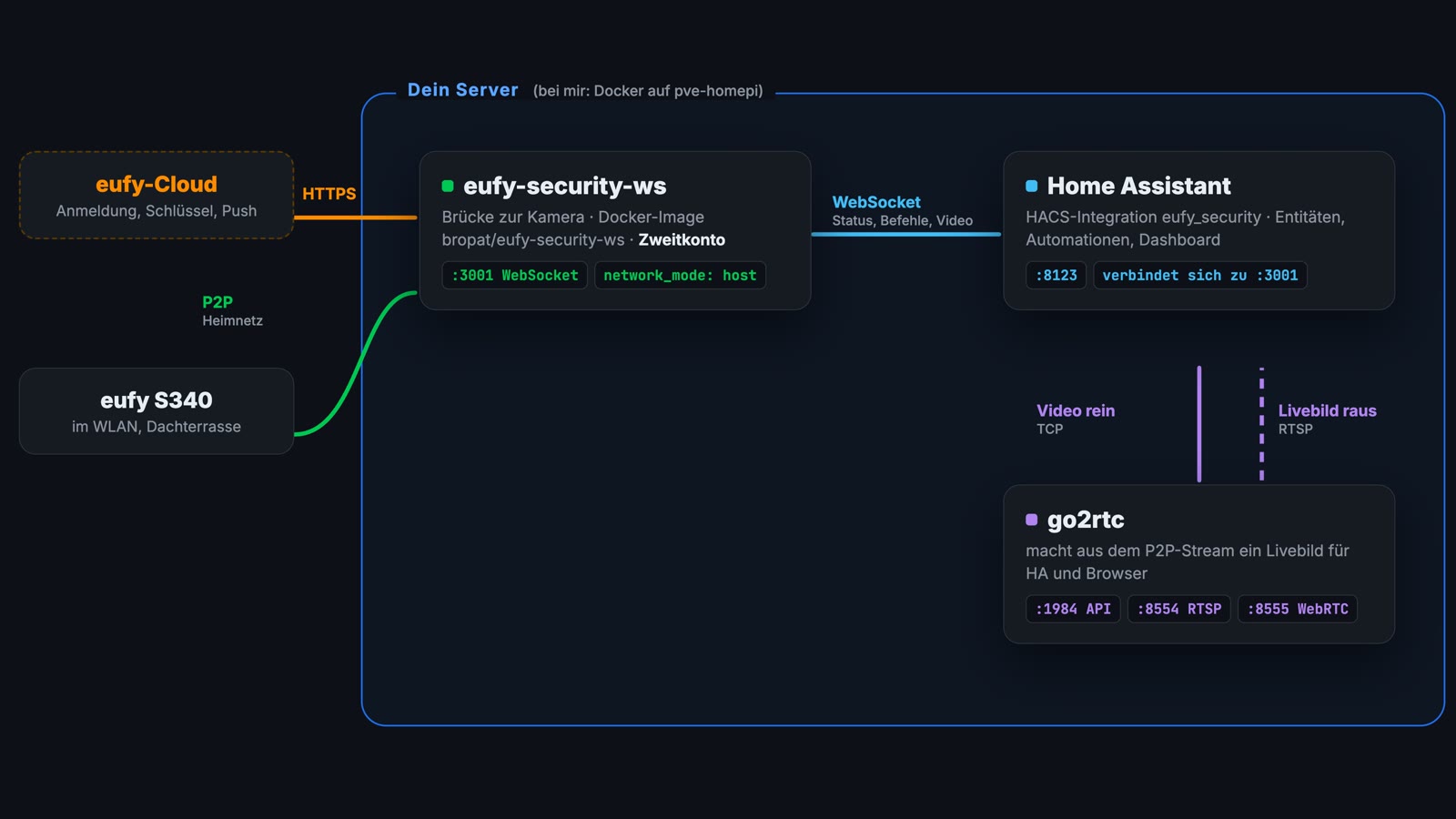
I run both services as Docker containers. network_mode: host matters, because P2P needs a direct path into your home network:
| |
With Home Assistant OS it’s even easier, since both are available as add-ons: eufy-security-ws by bropat and go2rtc by AlexxIT.
Then enter the bridge’s address and port in the integration, 127.0.0.1 and 3001 in my case. I tested with model T8170, firmware 3.3.5.4 and eufy_security 8.2.5.
Four tips to get it right the first time
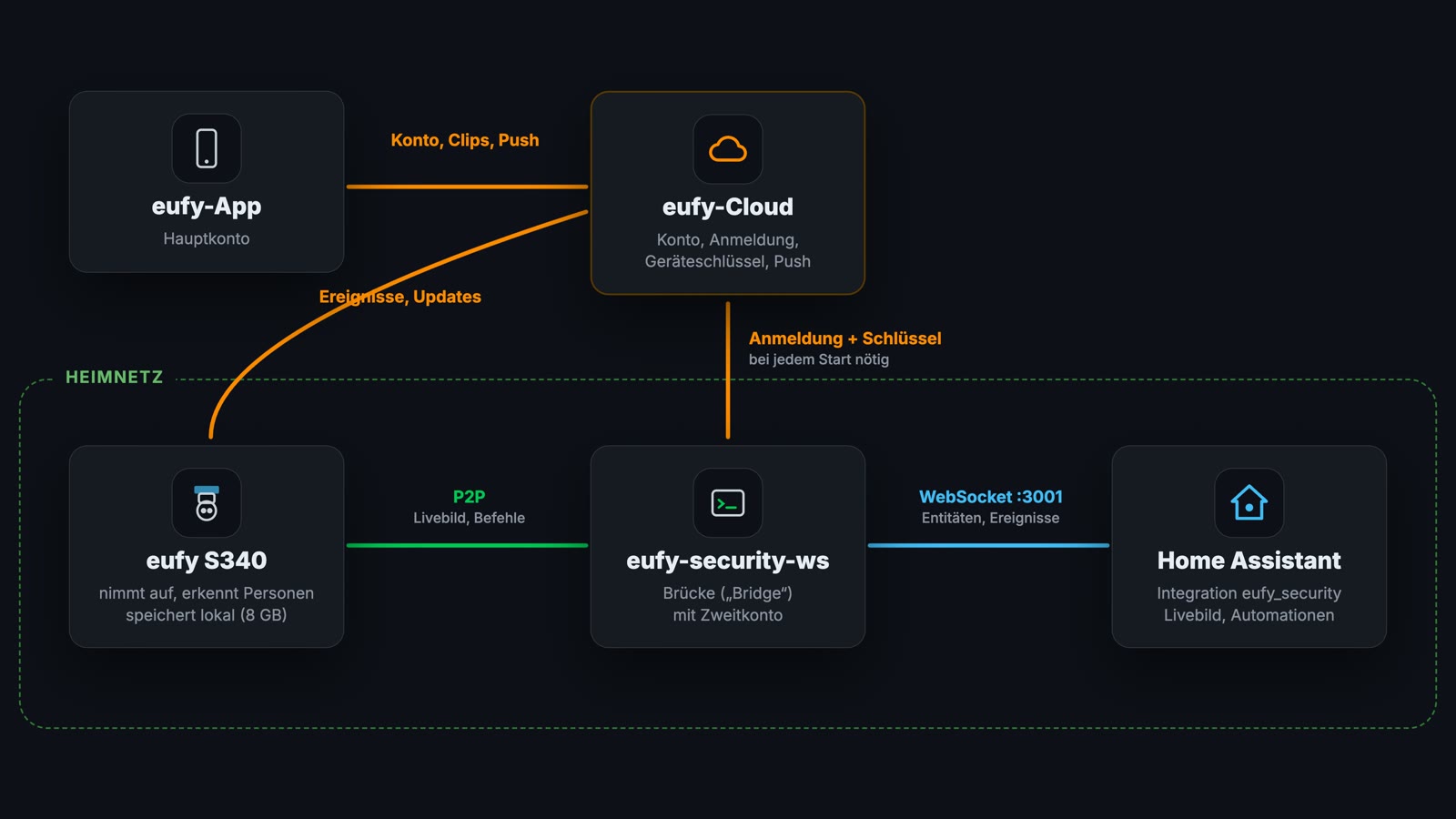
1. Use a separate account for Home Assistant. eufy only allows one active login per account. Create a second eufy account, share the camera or your whole home with it in the app under “Shared Management”, and accept the invitation in the second account. Home Assistant then uses that account, and you keep your main account in the app.
2. Set up go2rtc as a separate service. The integration expects go2rtc on the same machine, on ports 1984 and 8554. It doesn’t use the go2rtc built into Home Assistant for this.
3. Enable the diagnostic entities. Battery, Wi-Fi signal and stream status are disabled after setup. Enable them once by hand, then you can also see how full the battery is.
4. Plan for a battery camera. It sleeps most of the time to save power and drops the live stream by itself after about 30 seconds. Image transmission starts when you request it or when a preset trigger wakes the camera.
How local is all of this?
The recordings stay on the camera, and detection happens on the device. For access via the app and via Home Assistant you need a eufy account, and that login goes through the eufy cloud.
The automation: arm the camera when nobody’s home
I already have a “Leaving the house” automation: a long press on the button at the door, and the house goes to “Away”. The camera now hooks into that. When I’m gone it switches to Away and sends a push for every person who comes into view. If you want, it can also trigger the siren. When I come home it goes back to Home. The notification with an image comes straight from the eufy app, so I didn’t have to rebuild it.
Here’s my automation. input_select.status is my house status, adapt it to your system (the states are German in my setup):
| |
Panning, spotlight and siren also work from Home Assistant. Zoom, privacy zones and stored clips are still handled in the app.
Tip for automations: In my tests, Home Assistant reported a command as done even when the camera was asleep and didn’t execute it. That’s down to the integration, not the camera. So in important automations, check whether the command was actually carried out.
The test: what works without internet?
I blocked the camera’s internet access in my router, in a single test run:
| Without internet | |
|---|---|
| Live image in Home Assistant | works, comes via P2P from the home network and is there after a few seconds |
| Recording | works, the camera detects locally and saves internally |
| Push notification | doesn’t arrive, normally it took 6 to 7 seconds in my test |
| Motion in Home Assistant | isn’t reported |
| Starting the bridge | needs internet |
So automations that react to motion need an internet connection.
Conclusion
Image and recordings stay on the camera, and the live image also works without internet. It only needs the cloud for login and notifications, and a subscription for none of that.
If you want a camera with no cables and no cloud subscription that stores locally, powers itself, can look all around and delivers a really good picture day and night, you get a well-rounded package. In Home Assistant it integrates well with the community integration, using two services and a second eufy account.
🛒 eufy SoloCam S340 at Joybuy: https://abersicher.link/eufy-s340 (paid link). At Joybuy it currently costs €125.99, and with the code Smart22 you pay €103.99 (as of Nov 16, 2026, minimum order €100, valid until Jan 31, 2027).
Shipping is free on orders from €30, for new and existing customers. Joybuy belongs to JD.com, the same group that recently also acquired MediaMarkt-Saturn.
Have you integrated a battery camera into Home Assistant? With which solution, and what tips have you picked up? Tell me in the comments below the video.
By the way, during the test the camera also filmed me taking a dishwasher apart on the terrace. I explain why in this video.